Using the New Transaction Screen
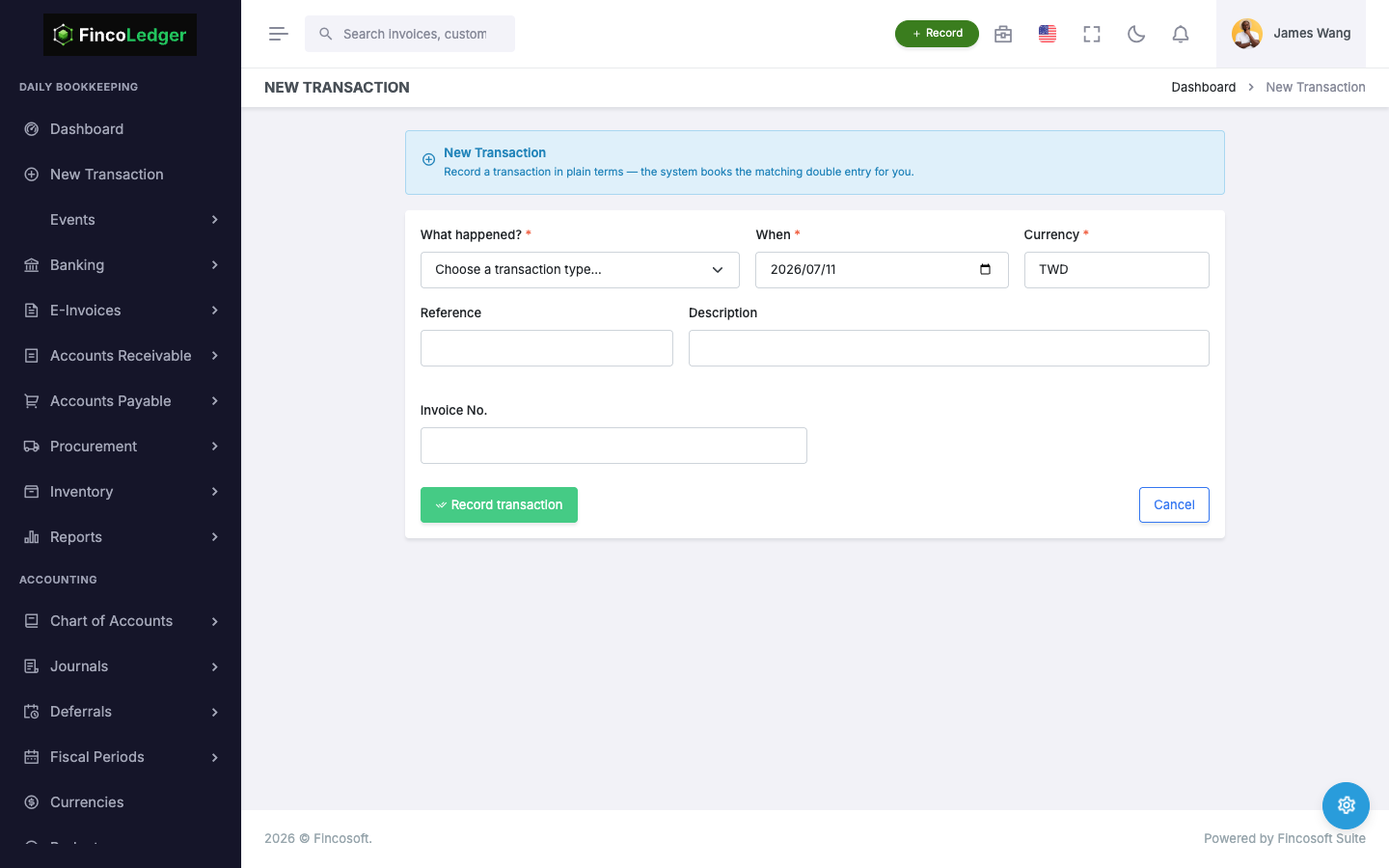
One screen for every transaction — no debits, no credits, no chart-of-accounts lookup. The engine writes the balanced journal entry for you.
How It Works
Four steps from a business event to a balanced journal entry.
Pick the Transaction Type
Choose what happened — receive money, pay money, invoice a customer, receive stock, ship stock, or transfer funds. The New Transaction screen covers bank, AR, AP, inventory, and general business events in one place.
Describe It in Business Terms
Fill in who it's with (a customer or vendor), the amount, the date, and a category — like writing a receipt, not a general ledger entry. You never have to pick a debit or credit account.
The Engine Posts a Balanced Journal
Based on the transaction type and category, the engine determines which accounts to debit and credit, builds an entry where debits equal credits, and posts it immediately.
View the Result in the Journal
Every transaction produces a journal entry you can look up in the Journal (日記帳), trace back to its source document, and reverse if needed.
What Gets Posted
Here's what the New Transaction screen covers, and the debit/credit entry the engine actually produces — you pick the left column, the engine handles the right.
| What You Do | What Gets Posted |
|---|---|
| Invoice a customer, collect payment later | DR Accounts Receivable / CR Revenue |
| Receive a customer's payment | DR Bank / CR Accounts Receivable |
| Record a vendor bill, pay it later | DR Expense / CR Accounts Payable |
| Pay a vendor | DR Accounts Payable / CR Bank |
| Receive inventory into stock | DR Inventory / CR Accounts Payable |
| Ship inventory to a customer | DR Cost of Goods Sold / CR Inventory |
| Receive money unrelated to an invoice (e.g. interest, a refund) | DR Bank / CR the income account tied to the category |
| Pay an expense unrelated to a vendor bill (e.g. rent, utilities) | DR the expense account tied to the category / CR Bank |
| Transfer money between your own accounts | DR the destination account / CR the source account |
Worked Example
One receive-money transaction, from the screen to the journal entry.
Scenario: A customer wires NT$50,000 into your operating bank account as sales income. On the New Transaction screen you pick "Receive Money," choose the "Sales Revenue" category, and enter the amount and date — no need to know which account to debit or credit.
The Journal Entry It Produces
| Debit | 1112 Cash at Bank | NT$50,000 |
| Credit | 4100 Operating Revenue | NT$50,000 |
The entry appears immediately in the Journal, already posted, with debits equal to credits.
Save a Transaction You Repeat
Rent, utilities, a monthly retainer — save the form once and re-enter it in a couple of clicks.
Save Any Entry Form
Any transaction screen can be saved as a shortcut — receive money, spend money, transfer, customer invoices, vendor bills, inventory moves, and journal entries. Give it a name like "Office Rent" and it is ready to reuse.
Re-enter in Two Clicks
Applying a shortcut refills the counterparty, the category, and the accounts — everything that stays the same each time. You fill in the amount and the date, and post as usual.
Keep It Private or Share It
A shortcut belongs to the person who made it. Anyone with sharing rights can promote one company-wide, so the whole team records a recurring transaction the same way every month.
Tip: Categories Drive the Default Account
Every category (like "Sales Revenue" or "Rent Expense") maps to a default GL account. An admin can adjust these mappings under Categories & Defaults (Settings → Event Categories) — every future transaction using that category then applies the new mapping automatically, with no need to edit past entries.
Ready to Simplify Your Bookkeeping?
Try the New Transaction screen and see bookkeeping without an accounting background.