Using the E-Invoice Pipeline
A practical walkthrough of the Taiwan e-invoice pipeline — from receiving a document to a draft entry a person confirms before it reaches the ledger.
Before You Start
Two things need to be in place before documents can flow all the way to a draft.
Set Your Company Tax ID
Your company's 統一編號 must be set in Tenant Settings. Every incoming document is resolved by comparing buyer and seller tax IDs against it — if it's missing or wrong, the pipeline can't tell whether a document is a bill you owe or an invoice you issued, and the document is parked in error status instead of moving forward.
Grant the E-Invoice Permissions
Three permissions gate the feature: einvoice.read to view the inbox, einvoice.import to upload files or trigger a pickup, and einvoice.review to accept, fix, or ignore documents. Assign them to whoever will be doing the reviewing.
Two Ways Documents Arrive
Both channels feed the same staging table and the same review inbox — pick whichever matches how you receive invoices today.
Platform File Upload
On the 平台檔匯入 screen, upload the workbook export from your e-invoice platform (大平台). The importer stages every row and flags duplicates and allowances automatically.
Turnkey Folder Auto-Pickup
If your Turnkey account drops standard MIG 4.0 XML files (A0401/A0501/B0401) into a folder, a scheduled job picks them up automatically, stages each one, and moves the file to a processed or error subfolder — no manual upload needed.
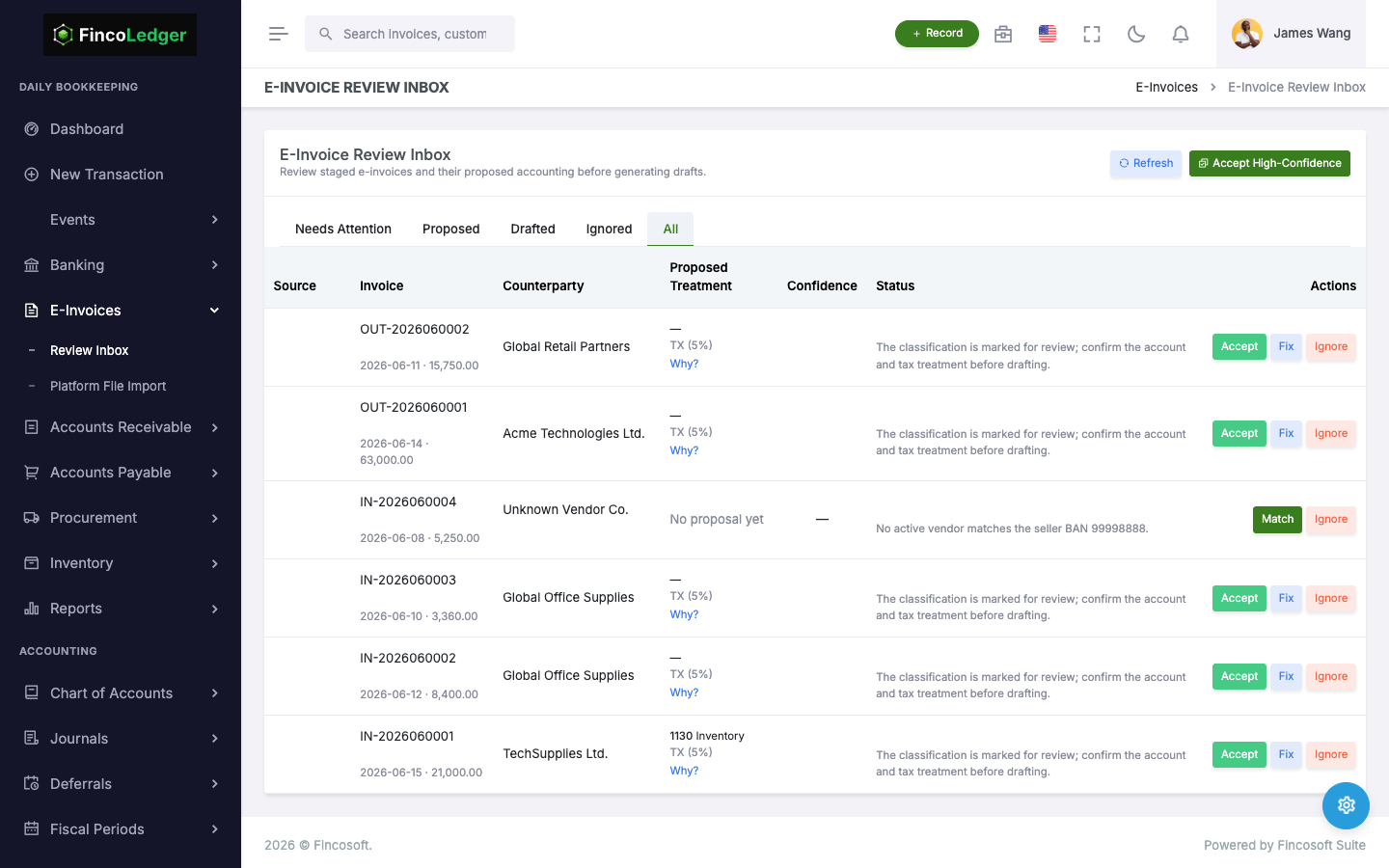
Working the Review Inbox
Every staged document moves through the same states before a human decides what happens to it.
Received
The document has been staged and its counterparty (vendor or customer) resolved from tax IDs.
Classified
The rules engine has proposed a GL account, tax code, and input-tax deductibility.
Drafted
A reviewer has accepted the document — it now exists as a draft AP bill or AR invoice.
Actions Available on Each Document
Accept — confirm the proposed classification as-is and create the draft.
Fix — override the account, tax code, or deductibility before accepting.
Ignore — park a document that doesn't need booking (e.g. informational copies).
Bulk Accept — clear a batch of high-confidence documents in one action.
Allowances
Allowances Become Credit/Debit Notes
When an e-invoice allowance (a Taiwan-specific price adjustment) comes through, it drafts as a credit or debit note instead of an ordinary bill or invoice, with debit and credit flipped so it nets correctly against the original document once posted.
Duplicates & Errors Are Parked, Not Dropped
A document arriving twice under the same invoice number and direction is parked as a duplicate — the earliest copy stays canonical. Anything the pipeline can't resolve (for example, a tax ID mismatch) is parked as an error with a status reason explaining the stall, so nothing is silently discarded and nothing reaches the ledger by accident.
Ready to See It Running?
Explore the review inbox yourself in the demo environment.